Codex 操控电脑的三种方式
Three Ways Codex Can Use a Computer
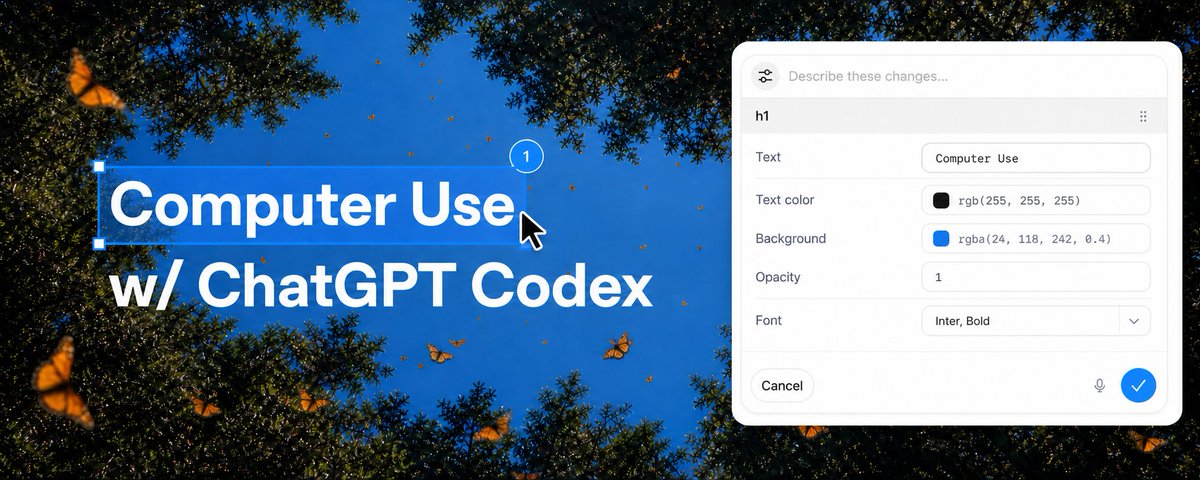
Update: Computer Use is now Available in the EU/UK ;) Enjoy!
There are three ways for Codex to use a computer: Computer Use, the Chrome extension, and the in-app browser.
They overlap just enough to be confusing.
By the end of this post, you will know how to install and trigger all three, when to use each one, how Appshots and Developer mode connect them, and what to add to AGENTS.md so Codex can choose the right surface on its own.
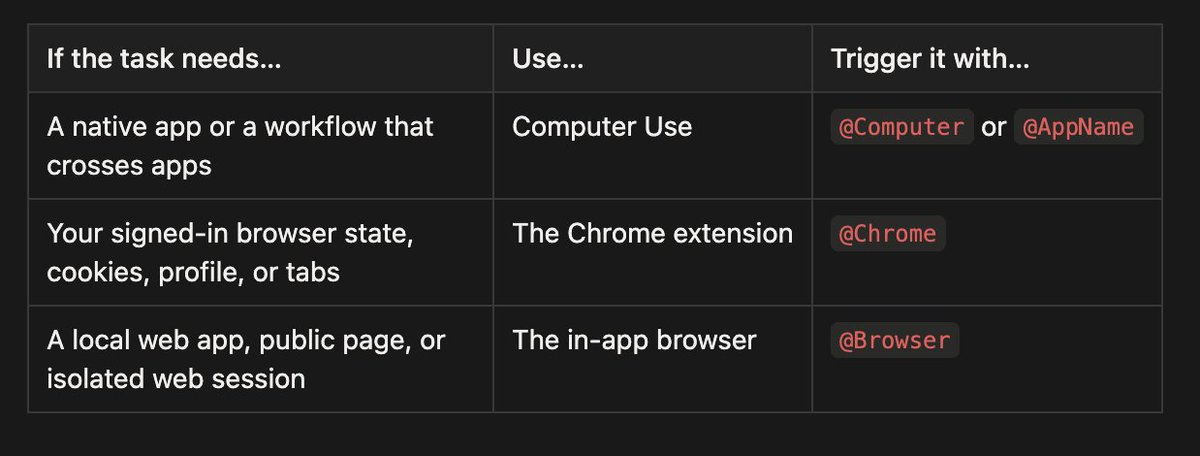
The short version is:
That being said, prefer a plugin or mcp when you can, a Slack plugin can retrieve a thread more precisely than clicking around Slack. A GitHub plugin produces actions that are easier to inspect than driving the website. Visual control is most useful at the boundary where a structured tool stops!
1. Everything is @Computer
Computer Use is the broadest of the three surfaces. It lets Codex see and operate graphical interfaces on macOS and Windows by working with windows, menus, keyboard input, and the clipboard in apps you approve.
It is also usually the slowest. A structured plugin can call an API directly; Computer Use has to look at the interface, decide where to click, wait for the app to respond, and inspect the next state. That visual loop costs time, but it means Codex can work with apps that expose no useful API at all.
On macOS, slow does not necessarily mean disruptive. Computer Use can operate approved apps in the background while you keep using the rest of your computer, often times I'll be using codex and open up an app and realized codex has been working quietly through some workflow.
Depending on what is installed and approved on your computer, that can include Spotify, XCode, System Settings, an iOS simulator, or even the iPhone Mirroring app to control your iPhone! It can also move between apps when one workflow spans several of them.
Use it when the task depends on:
- a native desktop app such as Spotify or a finance app
- an iOS simulator, iPhone Mirroring, or another GUI-only flow
- system or application settings
- a data source with no plugin or API
- a workflow that moves between several apps
- a missing action in an otherwise useful structured integration
To install it, open Settings > Computer Use in Codex and click Install.
To trigger it, mention @Computer, or explicitly ask Codex to use Computer Use, as our models get better it'll be able to call it all on its own when needed
Try out a few to start:
One of my favorite examples started with a stolen package. Amazon told me it would take about 25 minutes to connect me to a support agent. I gave a Codex thread Computer Use and asked it to check the chat every five minutes, switch to every minute once the agent appeared, and do its best to get the refund. I came back from a shower to a completed refund.
Use @Computer to open Spotify, find my Discover Weekly playlist, and start it. Do not change my account or subscription settings.

Use @Computer to open iPhone Mirroring, reproduce the onboarding bug in the iOS app, and take a screenshot of the failing state. Fix the smallest relevant code path, then run the same flow again.
I have also used Computer Use as the last mile in a mostly structured workflow. In one launch video, Codex could read feedback from Slack, change the code, and render a new video, but the Slack integration available to that thread could not upload the file. Computer Use clicked Add file and completed that one missing step.
It is also the broadest trust boundary of the three. Give it one clear app or flow at a time. Keep sensitive apps closed when they are not part of the task, review permission prompts, and stay present for financial, account, payment, credential, privacy, and system-security changes.
2. @Chrome for Multiple Tabs and Auth
The Codex Chrome extension gives Codex access to your signed-in Chrome state. Use it when the task depends on the account, cookies, browser profile, or authenticated tabs you already have.
This is the right surface for work in tools such as:
- Gmail or LinkedIn
- Salesforce or a support console
- internal dashboards
- authenticated research across several sites
- forms that depend on your account or browser extensions
To install it, open Plugins in Codex, add Chrome, and follow the setup flow. Codex will guide you through installing the Codex Chrome extension and approving Chrome's permissions. When the extension says Connected, start a new thread.
To trigger it, mention @Chrome or explicitly ask Codex to use your signed-in Chrome browser:
Use @Chrome to review the open customer account, compare it with the support ticket in the other tab, and draft the missing fields. Stop before submitting.Chrome tasks run in tab groups, which helps keep the tabs for one Codex thread together. Unlike the in-app browser, this surface carries your browser identity. That makes it more capable and more sensitive.
The other major advantage is multi-tab control. Chrome can keep several tabs associated with the same task, read context in one, compare it with another, and continue the workflow in a third. Computer Use can drive a browser visually, but Chrome understands the work as a browser workflow rather than a sequence of screen coordinates.
In one recent thread, I handed Codex an already-open Strudel Composer tab and asked it to make the music more interesting. Chrome gave it the selected tab and the page's WebMCP tools. Codex inspected the composition, rewrote the harmony and four-minute form, changed the tempo, saved the track, and left it playing. It did not need to visually hunt for every control because Chrome could combine tab context with the structured capabilities exposed by the page.
I use this for a long-running Twitter thread. The instruction is roughly:
Every day, use Chrome to check my DMs, read relevant news, and look for feedback or mentions I should know about. Add anything durable to my vault. Do not post or send messages.
The interesting part is not that Codex can open Twitter. It is that the thread can return to the same signed-in work over time, connect what it finds to local files, and leave me a reviewable result.
The trust boundary matters. Websites may treat Codex's clicks, form submissions, and messages as actions taken by you. Page content is also untrusted input. Keep consequential steps explicit: research, navigate, and draft automatically; require your review before sending, publishing, purchasing, or submitting.
If the whole task stays in the browser, prefer Chrome over Computer Use. Chrome has the browser-native context the task needs without opening access to the rest of the desktop.
3. In app @browser for websites you are building
The in-app browser is a browser that lives inside a Codex thread. You and Codex share the same rendered page, so it is especially good for building and debugging web apps.
This is where I start for:
- local development servers
- file-backed previews
- public pages that do not require sign-in
- reproducing visual bugs
- checking responsive layouts
- leaving element-level design feedback
The important constraint is isolation. The in-app browser does not use your normal browser profile, cookies, extensions, signed-in sessions, or existing tabs. That is a limitation when the task needs an account, but a useful boundary when it does not.
To set it up, open Plugins in Codex, add the Browser plugin, and enable it.
To trigger it, mention @Browser in your prompt or explicitly ask Codex to use the in-app browser:
Use @Browser to open vite app on <http://localhost:3000/>, reproduce the mobile overflow bug, fix it, and verify the same route again at desktop and mobile widths.This creates a tight feedback loop: Codex can edit the code, operate the page, inspect the rendered state, take a screenshot, and repeat the flow after the fix.
My favorite part is annotation. When I am reviewing a local app, I can click directly on an element or select an area and leave a comment. The style controls also let me preview and send more precise feedback about text, fonts, spacing, and color. I tend to combine this with voice input and steering: I review the page, leave comments, and queue more feedback while Codex works through it. The page becomes the specification.
This is especially useful for design work. I often ask Codex to turn an idea, research packet, or project status into a single index.html file, then open it in the in-app browser. Instead of trying to describe the whole design in another prompt, I annotate the actual page: “this hierarchy is backwards,” “make this feel less like a card,” “these controls need more room,” or “use this type scale everywhere.” Codex receives the comment with the relevant screenshot and element context, changes the file, and reopens the same page for another pass.
Create a single-file index.html for this project brief and open it in the in-app @Browser.
That loop feels much closer to working with a designer in the same canvas than passing screenshots and prose back and forth.
The in-app browser is also useful as a starting point for a mixed workflow. In another thread, I opened an X post in the in-app browser and asked Codex to investigate the discussion. The visible page established which post I meant; Codex then switched to the Twitter CLI and retrieved 38 replies, including nested responses that the browser view had hidden. That is the narrowest-surface rule in practice: use the browser for the context on screen, then use a structured tool for the deeper retrieval.
There is a tradeoff. The isolation that makes the in-app browser a good development surface also means it is the wrong place to fight with Google login, a passkey, or a site that depends on your browser extensions. When identity matters, move to Chrome.
Appshots
An Appshot is not a fourth way for Codex to control a computer. It is a way to point Codex at the context already in front of you.
On a Mac, press both CMD+CMD keys to capture the last window. Codex attaches an image and any available text to a thread. You can Appshot an error, an email, a design, a settings panel, or an unfamiliar form and simply say:
That is the mental model I find easiest to remember:
Appshots are how you point to something on your computer. Browser, Chrome, and Computer Use are how Codex acts.
Appshots are currently created from the Codex app on macOS. They capture the frontmost window, not the entire desktop, which makes them a useful way to provide focused context without granting control of the app.
How to follow the work
These surfaces are moving quickly. If you want the useful details rather than waiting for a giant launch recap:
- Follow Ari Weinstein (@AriX) for Computer Use, Appshots
- Follow James Sun (@JamesZmSun) for everything Browser
- Follow Andrew Ambrosino (@ajambrosino) for Codex app releases and the larger desktop-product story.
- Follow OpenAI Developers (@OpenAIDevs) for broader Codex and OpenAI Platform news.
更新:Computer Use 现已在欧盟/英国开放使用 ;) 尽情享用!
Codex 操控电脑有三种方式:Computer Use、Chrome 扩展,以及应用内浏览器。
它们之间的重叠恰好多到足以让人犯迷糊。
读完这篇文章,你会知道怎么安装并触发这三者、各自该在什么场景下用、Appshots 和开发者模式(Developer mode)是如何把它们串起来的,以及该往 AGENTS.md 里写些什么,好让 Codex 能自己选对该用哪个界面。
简短版本是这样:
话虽如此,能用插件或 mcp 就优先用——Slack 插件取一条线程会比在 Slack 里到处点击精确得多,GitHub 插件产出的动作也比直接驱动网页更容易核查。可视化操控最有用的地方,恰恰是在结构化工具失效的那个边界上!
1. 一切皆 @Computer
Computer Use 是这三种界面里覆盖面最广的。它让 Codex 能看到并操作 macOS 和 Windows 上的图形界面——在你授权过的应用里处理窗口、菜单、键盘输入和剪贴板。
它通常也是最慢的。结构化插件可以直接调 API;而 Computer Use 必须先看界面、判断该点哪里、等应用响应,再检查下一个状态。这个可视化循环要花时间,但好处是 Codex 能驾驭那些根本没有可用 API 的应用。
在 macOS 上,慢不一定就碍事。Computer Use 可以在后台操作授权过的应用,而你继续用电脑做别的事——很多时候我开着 codex、随手打开一个应用,才发现 codex 一直在悄悄跑完某套流程。
取决于你电脑上装了什么、授权了什么,这套范围可以涵盖 Spotify、XCode、系统设置、iOS 模拟器,甚至 iPhone 镜像(iPhone Mirroring)应用——用它来操控你的 iPhone!当一套工作流横跨好几个应用时,它还能在应用之间切换。
什么时候用它——当任务依赖于:
- 原生桌面应用,比如 Spotify 或某个理财应用
- iOS 模拟器、iPhone 镜像,或其他只有图形界面的流程
- 系统或应用设置
- 没有插件也没有 API 的数据源
- 一套横跨多个应用的工作流
- 某个本来很好用的结构化集成里,偏偏缺的那一步动作
安装它:在 Codex 里打开 Settings > Computer Use,点击 Install。
触发它:提及 @Computer,或明确要求 Codex 使用 Computer Use。随着我们的模型越来越强,它将能在需要时自行调用。
先从下面这几个例子上手试试:
我最喜欢的例子之一,起因是一个被偷的包裹。亚马逊告诉我,大约要 25 分钟才能帮我接通人工客服。我给了一个 Codex 线程 Computer Use 权限,让它每五分钟查一次聊天窗口、一旦客服出现就切换成每分钟查一次,并尽力把退款办下来。我洗完澡回来,退款已经办妥了。
Use @Computer to open Spotify, find my Discover Weekly playlist, and start it. Do not change my account or subscription settings.

Use @Computer to open iPhone Mirroring, reproduce the onboarding bug in the iOS app, and take a screenshot of the failing state. Fix the smallest relevant code path, then run the same flow again.
我也用 Computer Use 来给一套以结构化为主的工作流收尾、跑「最后一公里」。在一次发布视频里,Codex 能从 Slack 读取反馈、改代码、再渲染一段新视频,但那个线程能用的 Slack 集成没法上传文件。于是 Computer Use 点了一下 Add file,补完了缺失的这一步。
它也是三者里信任边界最宽的。每次只给它一个明确的应用或流程。不属于当前任务的敏感应用要保持关闭,仔细审查权限弹窗,碰到涉及金融、账户、支付、凭据、隐私和系统安全的改动时,全程在场盯着。
2. @Chrome:用于多标签页与登录态
Codex Chrome 扩展让 Codex 能访问你已登录的 Chrome 状态。当任务依赖于你已经有的账户、cookie、浏览器配置文件(browser profile)或已登录的标签页时,就用它。
下面这类工具里的活儿,它是对的界面:
- Gmail 或 LinkedIn
- Salesforce 或某个客服后台
- 内部仪表盘
- 跨多个站点的、需要登录的调研
- 依赖你账户或浏览器扩展的表单
安装它:在 Codex 里打开 Plugins,添加 Chrome,按照引导流程走。Codex 会一步步带你安装 Codex Chrome 扩展并授予 Chrome 权限。当扩展显示 Connected 时,开一个新线程。
触发它:提及 @Chrome,或明确要求 Codex 使用你已登录的 Chrome 浏览器:
Use @Chrome to review the open customer account, compare it with the support ticket in the other tab, and draft the missing fields. Stop before submitting.Chrome 任务在标签页组(tab group)里运行,这有助于把同一个 Codex 线程的标签页归拢在一起。与应用内浏览器不同,这个界面带着你的浏览器身份。这让它既更强大,也更敏感。
另一个主要优势是多标签页控制。Chrome 能让同一个任务关联多个标签页:在一个里读上下文、跟另一个对比、再在第三个里把工作流继续下去。Computer Use 也能可视化地驱动浏览器,但 Chrome 是把这件事理解成一套浏览器工作流,而不是一连串屏幕坐标。
最近一个线程里,我把一个已经打开的 Strudel Composer 标签页交给 Codex,让它把音乐弄得更有意思些。Chrome 把选中的标签页和页面的 WebMCP 工具一并给了它。Codex 检查了整段编曲,重写了和声和长达四分钟的曲式,改了节奏,保存了曲目,并让它继续播着。它不需要靠眼睛去一个个找控件,因为 Chrome 能把标签页上下文和页面暴露出来的结构化能力结合起来用。
我用它来跑一个长期运行的 Twitter 线程。指令大致是:
每天,用 Chrome 查看我的私信、读相关新闻,留意我该知道的反馈或提及。把任何值得留存的内容加进我的 vault。不要发帖或发消息。
有意思的地方不在于 Codex 能打开 Twitter,而在于这个线程能随时间一次次回到同一份已登录的工作上、把它发现的东西跟本地文件关联起来,并给我留下一份可供审阅的结果。
信任边界很关键。网站可能会把 Codex 的点击、表单提交和消息,当成是你本人做出的动作。页面内容同样是不可信的输入。把那些有后果的步骤显式留给自己:调研、导航、起草都自动做;但在发送、发布、购买或提交之前,必须经过你的审阅。
如果整个任务都待在浏览器里,优先用 Chrome 而不是 Computer Use。Chrome 拥有任务需要的浏览器原生上下文,又不必把通往桌面其余部分的访问权打开。
3. 应用内 @Browser:用于你正在构建的网站
应用内浏览器是一个活在 Codex 线程内部的浏览器。你和 Codex 共享同一个渲染好的页面,所以它特别适合构建和调试 Web 应用。
下面这些活儿,我都从它开始:
- 本地开发服务器
- 基于文件的预览
- 无需登录的公开页面
- 复现视觉 bug
- 检查响应式布局
- 留下元素级别的设计反馈
重要的约束是隔离。应用内浏览器不会用你平时的浏览器配置文件、cookie、扩展、已登录会话或现有标签页。当任务需要账户时,这是个限制;当任务不需要时,这却是个有用的边界。
设置它:在 Codex 里打开 Plugins,添加 Browser 插件并启用。
触发它:在提示词里提及 @Browser,或明确要求 Codex 使用应用内浏览器:
Use @Browser to open vite app on <http://localhost:3000/>, reproduce the mobile overflow bug, fix it, and verify the same route again at desktop and mobile widths.这会形成一个紧凑的反馈循环:Codex 可以改代码、操作页面、检查渲染状态、截图,修完之后再把整个流程重跑一遍。
我最喜欢的部分是批注。审阅一个本地应用时,我可以直接点击某个元素、或框选一块区域,然后留下评论。样式控件还让我能预览,并就文字、字体、间距和颜色发出更精确的反馈。我习惯把这跟语音输入和实时引导结合起来:我审阅页面、留评论,并在 Codex 处理的同时把更多反馈排进队列。页面本身成了规格说明。
这对设计工作尤其有用。我常让 Codex 把一个想法、一份调研资料包或一份项目进展,做成一个单独的 index.html 文件,然后在应用内浏览器里打开它。我不再试图在另一段提示词里把整个设计描述清楚,而是直接在真实页面上批注:「这个层级反了」「让这块别那么像卡片」「这些控件得给更多空间」或者「整页都用这套字号比例」。Codex 收到的评论会带上相关截图和元素上下文,它改完文件,再重新打开同一个页面进入下一轮。
Create a single-file index.html for this project brief and open it in the in-app @Browser.
那个循环的感觉,比来回传截图和文字描述,更接近于跟一位设计师在同一块画布上协作。
应用内浏览器还很适合作为混合工作流的起点。在另一个线程里,我在应用内浏览器里打开了一条 X 帖子,让 Codex 去调查那场讨论。可见的页面确立了我指的是哪条帖子;接着 Codex 切到 Twitter CLI,取回了 38 条回复,其中包括浏览器视图里被隐藏起来的嵌套回复。这就是「最窄界面」原则的实战:用浏览器抓屏幕上的上下文,再用结构化工具做更深的检索。
这里有个取舍。让应用内浏览器成为好的开发界面的那份隔离,同时也意味着它是个糟糕的地方——你别指望在这儿跟 Google 登录、passkey、或某个依赖你浏览器扩展的站点死磕。当身份变得重要时,转到 Chrome。
Appshots
Appshot 不是 Codex 操控电脑的第四种方式。它是一种把 Codex 指向你眼前已有上下文的办法。
在 Mac 上,同时按下两个 CMD 键(CMD+CMD),即可捕获最后一个窗口。Codex 会把一张图片连同任何可用的文本附到线程里。你可以 Appshot 一条报错、一封邮件、一份设计稿、一个设置面板,或一张陌生的表单,然后只需说:
这是我觉得最好记的心智模型:
Appshots 是你用来指向电脑上某样东西的方式。Browser、Chrome 和 Computer Use 则是 Codex 用来动手做的方式。
Appshots 目前在 macOS 上的 Codex 应用里创建。它们捕获的是最前面的那个窗口,而非整个桌面,这让它成为一种有用的方式——既提供了聚焦的上下文,又不必交出对该应用的控制权。
如何跟进这些进展
这些界面都在快速变化。如果你想要有用的细节,而不是干等一场巨型发布回顾:
- 关注 Ari Weinstein (@AriX),了解 Computer Use、Appshots
- 关注 James Sun (@JamesZmSun),了解 Browser 的一切
- 关注 Andrew Ambrosino (@ajambrosino),了解 Codex 应用的发布,以及更宏大的桌面产品故事。
- 关注 OpenAI Developers (@OpenAIDevs),了解更广泛的 Codex 与 OpenAI 平台动态。